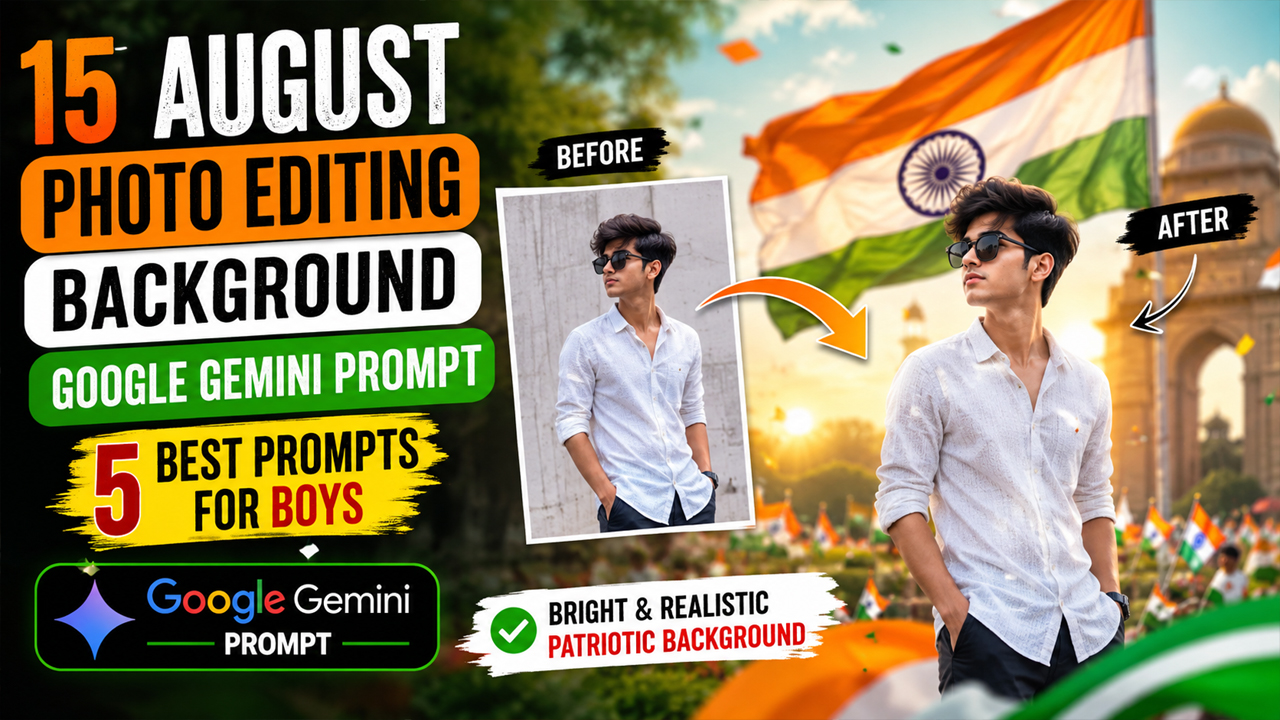
15 August Photo Editing Background Google Gemini Prompt 2026
Prompt Variants (5 variants)
1. Bright Independence Day Portrait Background
Best For - This style works especially well for: Instagram profile photos WhatsApp status Facebook posts Independence Day greetings Personal patriotic photos
2. Indian Flag Celebration Background
Why This Prompt Looks Better - The prompt tells Gemini to use soft daylight and natural depth of field instead of making the entire background extremely dramatic. That helps maintain a realistic photographic appearance.
3. 15 August Tricolor Outdoor Photoshoot
Result Style - The final image should feel like a real outdoor Independence Day photoshoot rather than a digitally generated poster.
4. 15 August Traditional Indian Background
This version is particularly suitable if your original photograph is already a traditional outfit photo.
5. Modern 15 August Instagram Background
This prompt is a good choice for a clean Instagram or Facebook Independence Day post.
Overview
15 August Photo Editing Background Google Gemini Prompt
India’s Independence Day is a perfect occasion to create a patriotic photo with a clean, stylish, and realistic background. If you want to edit your photo for 15 August using Google Gemini, the right background prompt can make a huge difference.
Instead of using an overly dark background, you can create a bright Independence Day scene with the Indian Tricolor, soft daylight, subtle patriotic decorations, realistic surroundings, and natural colors. The goal is to make the final image look like a professionally photographed portrait rather than an obviously AI-generated picture.
In this guide, you’ll find several 15 August Photo Editing Background Google Gemini Prompts that you can use with your own photo. Simply upload your image to Gemini and add one of the prompts below.
How These 15 August Gemini Prompts Work
These prompts are designed for people who want to keep their original face, hairstyle, body proportions, and identity while changing the surrounding background.
You can upload a clear portrait or full-body photograph and ask Gemini to create a new Independence Day environment around you.
For the best result, use a photo with:
Good lighting
A clearly visible face
High resolution
Minimal blur
Natural body posture
Simple original background
How to Use These 15 August Gemini Prompts
Using these prompts is simple.
Step 1: Choose Your Photo
Select a clear photo where your face is visible. A high-resolution image will usually produce better editing results.
Step 2: Open Google Gemini
Open Gemini and upload your selected photograph.
Step 3: Copy a Prompt
Choose one of the 5 prompts from this article and paste it along with your uploaded photo.
Step 4: Tell Gemini to Preserve Your Identity
The prompts already include instructions to preserve your facial features and identity. This is important because background editing should not unnecessarily change your appearance.
Step 5: Check the Result
Look carefully at:
Face
Hands
Clothing
Indian flag
Background objects
Lighting
Skin texture
If something looks unnatural, ask Gemini to correct that specific area.
Tips for a More Realistic 15 August Photo
If you want your result to look less artificial, follow these tips.
Use Natural Lighting
Bright daylight generally produces a more realistic portrait than extreme dark lighting.
Don't Overload the Background
Adding too many flags, flowers, lights, fireworks, and decorations can make the image look artificial. A few well-placed elements are usually enough.
Keep the Tricolor Natural
The Indian flag should appear naturally positioned and correctly proportioned rather than covering the entire background.
Use Background Blur Carefully
A slightly blurred background can make the person stand out while still maintaining a realistic photographic appearance.
Upload a High-Quality Original Photo
A blurry or heavily compressed source image can make the final AI edit less detailed.
Avoid Excessive Effects
You don't need heavy glow, smoke, sparks, neon lights, or extreme color grading to create an attractive Independence Day photo.
What Makes a Good 15 August AI Photo?
A strong Independence Day image should balance patriotism and realism.
The Indian Tricolor should be visible, but it shouldn't overwhelm the subject. Similarly, saffron, white, and green should complement the scene instead of making every object those colors.
Natural sunlight, realistic shadows, accurate skin texture, and a clean background can make the final result look much more convincing.
For social media, a simple bright portrait with a tasteful Indian flag often looks better than an image packed with artificial effects.
Frequently Asked Questions
Can I use these prompts with my own photo?
Yes. Upload your photo to Google Gemini and paste the selected prompt with it. The prompts are designed around personal photo editing.
How can I prevent the background from becoming too dark?
Include instructions such as bright natural daylight, clean outdoor environment, balanced exposure, and realistic colors. The prompts above already include these instructions.
Can I use these prompts for a full-body photo?
Yes. You can use them with portrait as well as full-body photographs. For the best results, upload a clear image with your entire body visible if you want a full-body edit.
How do I make the Indian flag look realistic?
Ask Gemini to place the flag naturally in the environment and maintain realistic proportions, folds, lighting, and perspective.
Can I use these images for Instagram?
Yes, you can create Independence Day images suitable for social-media posts, stories, and profile pictures.
Why does my AI photo sometimes look fake?
This can happen when the original image has poor quality or when the prompt asks for too many effects. Try a high-resolution photograph and a simpler background with natural lighting.
Which prompt should I try first?
If you want a clean and realistic result, start with Prompt 1. If you want a more festive image, try Prompt 2. For Instagram-style editing, Prompt 5 is a good option.
Final Thoughts
Creating a patriotic photo for 15 August doesn't require an overly complicated background. With Google Gemini, you can transform an ordinary photograph into a realistic Independence Day portrait by combining your original photo with a carefully written background prompt.
For the most natural result, focus on bright daylight, realistic surroundings, subtle Tricolor decorations, natural shadows, and a clean composition. Avoid extremely dark backgrounds and excessive visual effects because they can make an AI-generated image look less realistic.
Upload your best-quality photo, choose one of the prompts above, and experiment with different Independence Day backgrounds until you find the style that suits your photo best.
Happy Independence Day 2026! 🇮🇳
Image