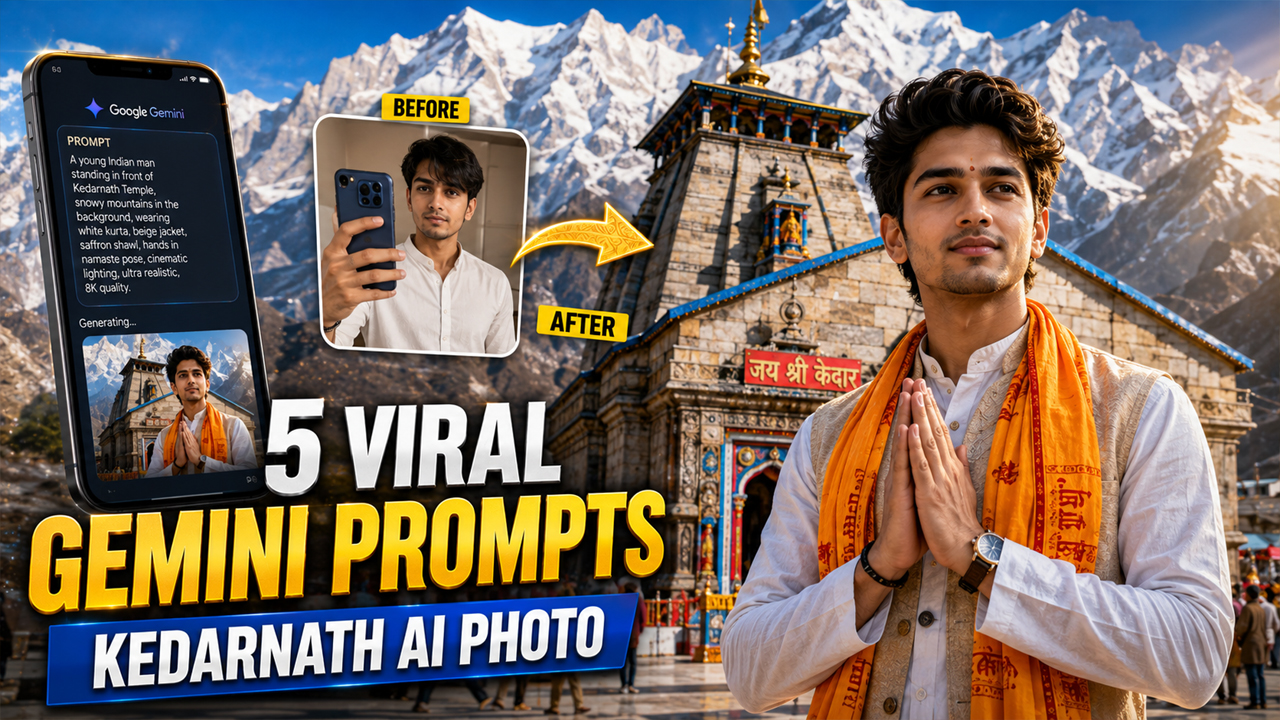
Viral Gemini Kedarnath AI Photo Prompts You'll Fall in Love With
Prompt Variants (5 variants)
Prompt 1 – Morning Divine Darshan
Prompt 2 – Royal Traditional Look
Prompt 3 – Evening Spiritual Glow
Prompt 4 – Himalayan Winter Blessing
Prompt 5 – Devotional Travel Portrait
Overview
5 Viral Gemini Kedarnath AI Photo Prompts You'll Fall in Love With
The popularity of AI-generated spiritual portraits has grown rapidly, and Kedarnath-themed images are among the most searched styles. With Google Gemini, you can create realistic portraits that place you near the sacred Kedarnath Temple while maintaining a natural look.
The key to a high-quality result is using a detailed prompt. Instead of asking AI to create a simple mountain background, describe the atmosphere, lighting, clothing, camera angle, and facial realism. This helps Gemini produce images that feel like professional travel photography rather than artificial AI artwork.
In this guide, you'll find five carefully designed prompts that create bright, realistic scenes with clean lighting. These prompts avoid overly dark backgrounds and exaggerated AI effects, making the final image suitable for social media profiles, wallpapers, or personal memories.
Tips for Better Gemini Results
Upload a high-resolution front-facing photo.
Use a photo with good natural lighting.
Avoid blurry selfies.
Keep your face clearly visible.
Generate multiple versions and choose the most natural one.
If needed, slightly edit the prompt to match your outfit preference.
Why These Prompts Look More Realistic
These prompts are designed to avoid the common AI issues of dark backgrounds, plastic-looking skin, oversaturated colors, and unrealistic temple details. Instead, they emphasize daylight, authentic Himalayan scenery, DSLR-style photography, and balanced lighting so the images appear more like real travel photos than AI-generated artwork.
How to Use These Gemini AI Prompts
Using these prompts in Google Gemini is simple. Follow these steps for the best results:
Step 1
Open Google Gemini and switch to image generation mode.
Step 2
Upload a clear, high-quality front-facing photo.
Step 3
Copy one of the prompts from this article.
Step 4
Paste the prompt into Gemini.
Step 5
Generate the image and wait a few moments.
Step 6
If the outfit or pose isn't exactly what you want, edit a few lines in the prompt and regenerate.
Tips for Getting the Most Realistic Results
Use a selfie taken in daylight.
Choose a neutral facial expression.
Avoid blurry or low-resolution images.
Keep the face fully visible.
Mention "photorealistic", "DSLR", "85mm lens", and "natural lighting" in the prompt.
Use morning or golden hour lighting for a clean, vibrant look.
Avoid excessive effects like neon lighting or fantasy colors if you want a realistic travel photo.
Frequently Asked Questions
1. Are these prompts free to use?
Yes. You can copy, edit, and use these prompts for your personal AI image generation.
2. Do I need to upload my own photo?
Yes. Uploading your own photo helps Gemini create a portrait that resembles you while placing you in the requested scene.
3. Which image works best?
A high-resolution photo with natural daylight and a clear view of your face gives the best results.
4. Can I change my outfit?
Absolutely. Replace the clothing description in the prompt with your preferred style, such as a hoodie, kurta, sherwani, trekking jacket, or casual outfit.
5. Can I use these prompts in other AI tools?
Yes. They can also work with many AI image generators, although results may vary depending on the model.
6. Why does my image look unrealistic?
Common reasons include:
Low-quality uploaded photo
Blurry face
Poor lighting
Very short or incomplete prompts
Adding more detail usually improves the output.
Conclusion
Google Gemini makes it easy to create stunning Kedarnath-inspired AI portraits when you start with a well-written prompt. The prompts shared in this article focus on realistic photography, balanced lighting, and authentic Himalayan scenery to produce images that look natural rather than overly artificial.
Try different outfits, poses, and weather conditions to create a unique collection of spiritual travel portraits. Small changes in the prompt can lead to completely different artistic styles while maintaining a realistic appearance.
Image